今天的主題延續昨天的 Navigation + TableView
我們要來客製化 TableViewCell
通常 TableView 可以被拿來做很多事情,不僅只是像是 ListView 而已
而 TableViewCell 可以做更深度的切版,排列元素
因此自定 TableViewCell 是一件算是還蠻重要的事情
下面的 Code 是延續昨天的專案
我先把已更改過的程式碼貼上來:
 1
 2
 3
 4
 5
 6
 7
 8
 9
10
11
12
13
14
15
16
17
18
19
20
21
22
23
24
25
26
27
28
29
30
31
32
33
34
35
36
37
38
39
40
41
42
43
44
45
| import UIKit
class ViewController: UIViewController, UITableViewDataSource, UITableViewDelegate {
@IBOutlet var tableView: UITableView!
var arr = ["A", "B", "C"]
override func viewDidLoad() {
super.viewDidLoad()
// Do any additional setup after loading the view, typically from a nib.
}
override func didReceiveMemoryWarning() {
super.didReceiveMemoryWarning()
// Dispose of any resources that can be recreated.
}
func tableView(tableView: UITableView, numberOfRowsInSection section: Int) -> Int {
return arr.count;
}
func tableView(tableView: UITableView, cellForRowAtIndexPath indexPath: NSIndexPath) -> UITableViewCell {
var cell: CustomTableViewCell? = tableView.dequeueReusableCellWithIdentifier("cell") as CustomTableViewCell?
if cell == nil {
var objects = NSBundle.mainBundle().loadNibNamed("CustomTableViewCell", owner: self, options: nil)
cell = objects[0] as? CustomTableViewCell
}
cell!.textLabel?.text = arr[indexPath.row]
return cell!
}
func tableView(tableView: UITableView, didSelectRowAtIndexPath indexPath: NSIndexPath) {
var detailViewController = DetailViewController()
detailViewController.title = arr[indexPath.row]
self.navigationController?.pushViewController(detailViewController, animated: true)
}
func tableView(tableView: UITableView, heightForRowAtIndexPath indexPath: NSIndexPath) -> CGFloat {
return 165.0
}
}
|
今天要新增一個檔案, 我們就稱之為 CustomTableViewCell
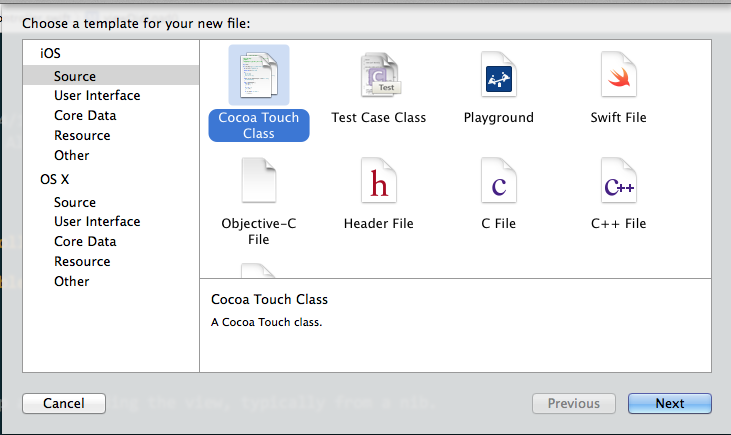
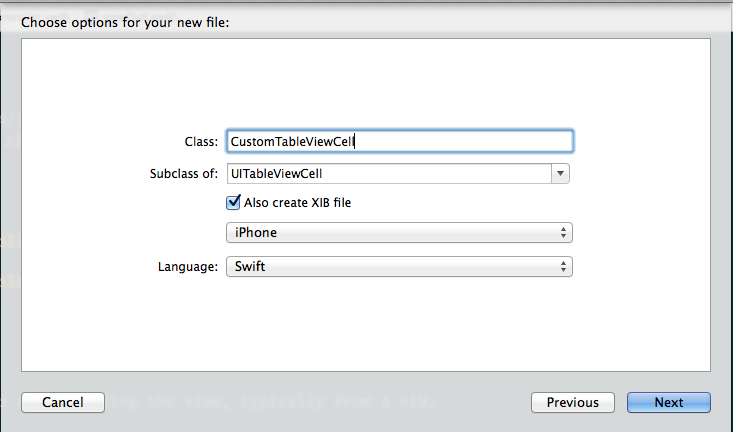
就會出現一份 .swift 檔案以及 .xib 檔案了

接下來我們簡單編輯 .xib 檔案,將背景顏色換成其他顏色,以及將它的長度拉高
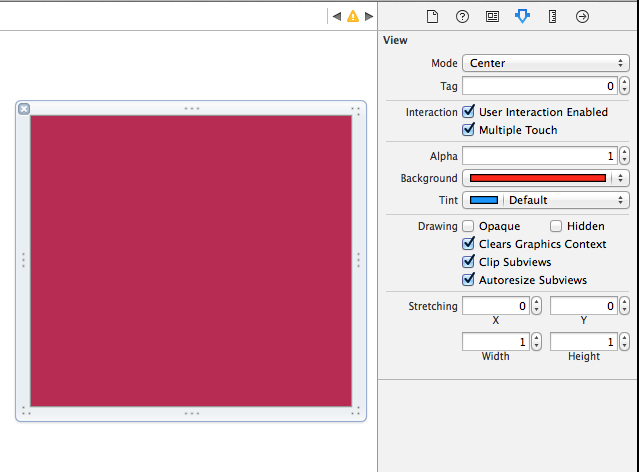
這樣其實就很簡單地完成了一個小客製化的 TableViewCell 了
那我們要怎麼讓原本的 TableView 吃到這個 TableViewCell 呢?
看以下的 function:
 1
 2
 3
 4
 5
 6
 7
 8
 9
10
11
12
| func tableView(tableView: UITableView, cellForRowAtIndexPath indexPath: NSIndexPath) -> UITableViewCell {
var cell: CustomTableViewCell? = tableView.dequeueReusableCellWithIdentifier("cell") as CustomTableViewCell?
if cell == nil {
var objects = NSBundle.mainBundle().loadNibNamed("CustomTableViewCell", owner: self, options: nil)
cell = objects[0] as? CustomTableViewCell
}
cell!.textLabel?.text = arr[indexPath.row]
return cell!
}
|
我們將 cell 的類別更改成了 CustomTableViewCell
直接使用剛剛產生的 .swift 類別來產生新的 TableViewCell
並且如果 cell == nil ,則會將 Nib 載入
最後設定該 textLabel ,返回 cell
若使用最一開始的程式碼 apply changes
執行!
應該就可以看到成果了!
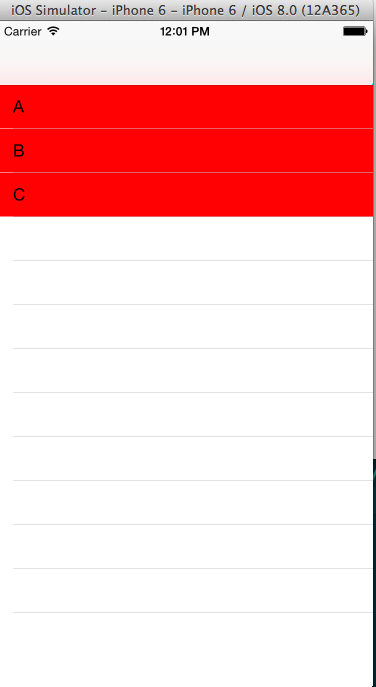
p.s. 這篇可能實作上會有 bug (我寫的), 就先跳過吧 XD